Prompt to Interface
The best AI-native workflow turns a real ministry or staff need into a reviewed interface. The prompt is not the product. The product is the working screen that helps someone complete the task.
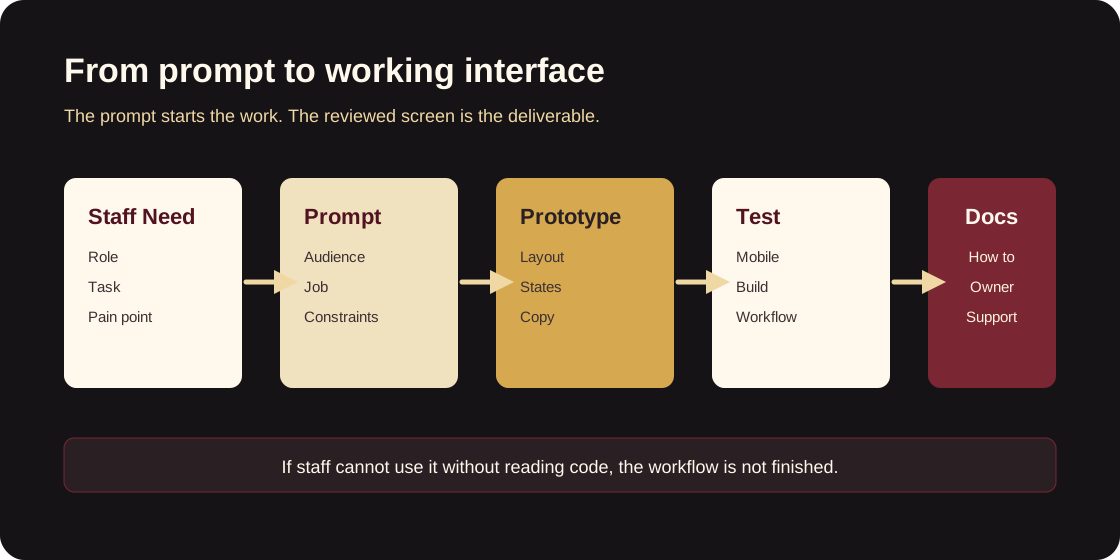
The five-part prompt
Give Codex five pieces of context:
- Audience: who uses this screen.
- Job: what they need to finish.
- Data: what information they need to see or enter.
- Constraints: what must be protected, avoided, or kept consistent.
- Verification: how to know the change works.
Example:
Build a first version of an internal volunteer follow-up screen. The user is a ministry coordinator. They need to see new contact requests, mark who has been contacted, and record a simple next step. Do not expose private infrastructure details. Use the existing app patterns, keep it mobile-friendly, and run the relevant checks.
Interface decisions
Use this filter when choosing what belongs on a screen:
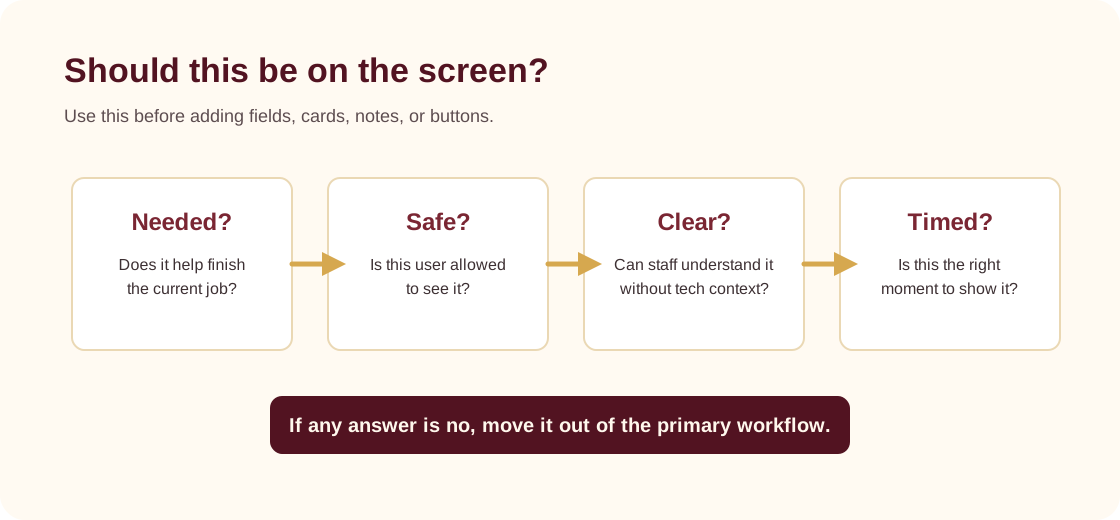
If the answer is no, move it out of the primary screen:
- Is this needed for the user to complete the job?
- Is it safe for this user to see?
- Is it clear without technical training?
- Is this the right moment to show it?
Staff review script
When reviewing a new AI-built screen, ask:
If I were tired, rushed, and using my phone, would I know what to do next?
Then check:
- the first visible heading
- primary button text
- required fields
- error messages
- success confirmation
- navigation back to the previous task
Documentation handoff
After a new internal tool screen is approved, add or update its module under Internal Tool Modules. Staff should not need to read code or chat history to understand how to use the tool.